Purpose: #
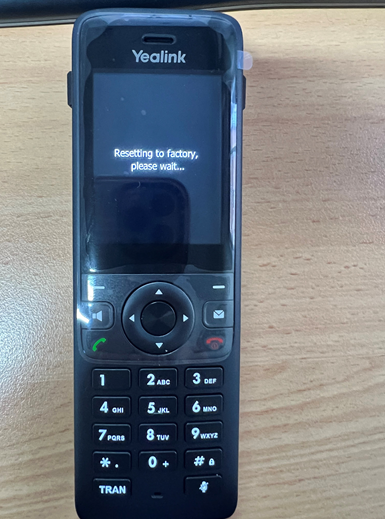
A quick guide on how to factory reset the Yealink AX83H Handset phone
Process: #
How to Get MAC and IP Address #
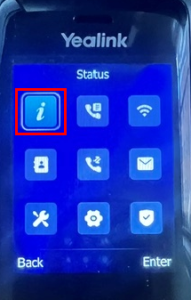
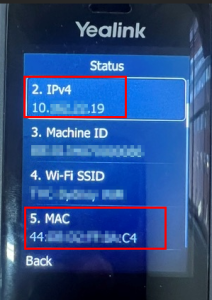
If you need to get the MAC or IPv4 address, click the middle ‘Menu’ button and navigate to ‘Status’. In the status page, look for IPv4 and MAC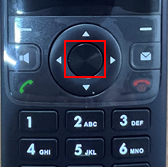
How to Reboot the Phone #
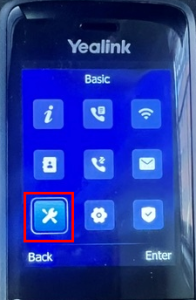
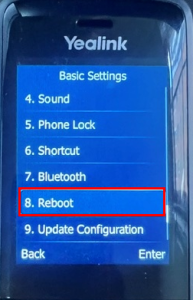
If you need to reboot the phone, click the middle ‘Menu’ button and navigate to > Basic > Reboot
How to Factory Reset #
Performing a factory reset will erase the Wi-Fi configuration. You will need to manually reconnect the device to Wi-Fi once the process is complete. Please refer to this Yealink AX83H WiFi Setup Guide for assistance. Additionally, the device may be assigned a new IP address; see the “How to Get MAC and IP Address” section above to locate the updated details.
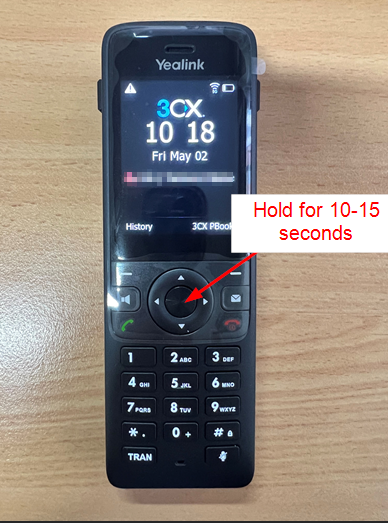
1. On the phone, press and hold the middle ‘Menu’ button for 10 – 15 seconds, until you see the “Reset to factory settings?” message.
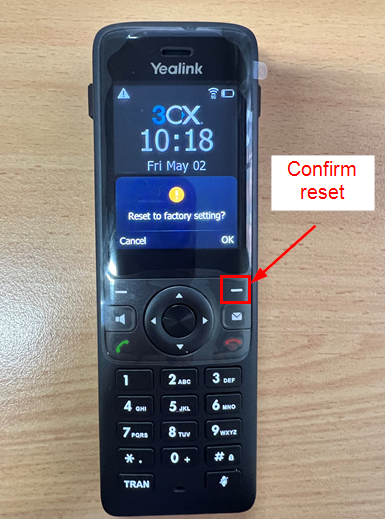
2. Confirm the factory reset by clicking on the right ‘-‘ button
3. Your phone is now reset! Wait for the settings to clear